> ## Documentation Index
> Fetch the complete documentation index at: https://docs.trendcore.tech/llms.txt
> Use this file to discover all available pages before exploring further.
# Look
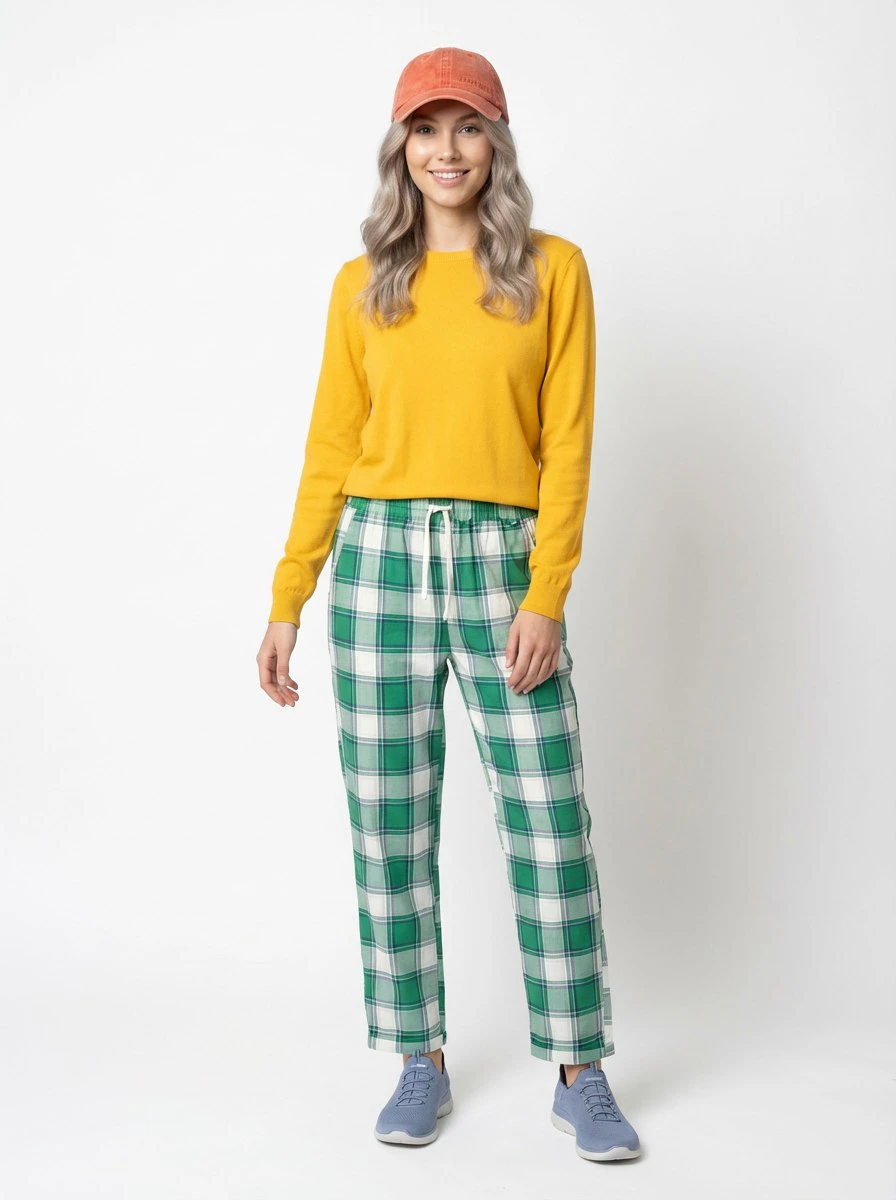
> Create a reusable outfit image by using a complete outfit reference or combining selected clothing and accessory elements.
## What a Look is
The **Look** module is used to create an outfit-based visual composition that can later be used in PhotoSet generation.
A **Look** is a combination of clothing items and accessories that forms a complete visual outfit. It defines what the subject is wearing, but it does not define the subject itself and it is not yet a full photo series.
**PhotoModel** defines who appears in the image. **Look** defines what the subject wears.
The module is launched from the menu via **/createlook**
## Two ways to create a Look
If the system detects that the uploaded image already contains a complete outfit, you can use that full outfit as the basis for the Look and move directly to generation.
You can also build the final Look from selected individual elements instead of using the full outfit as-is.
## How the module works
Launch the module from the main menu.
Upload an image containing one or more clothing items or accessories.
The system determines whether the image contains a full outfit and identifies visible elements.
Use the full outfit directly or continue building a custom Look from selected items.
In custom assembly mode, you can continue uploading more images.
Choose which detected clothing items and accessories should become part of the final Look.
Create the final Look image for future PhotoSet generation.
## Building a custom Look
In custom assembly mode, the system analyzes each uploaded image and identifies the visible outfit elements. You then choose which items should be included in the final Look.
Examples of selectable elements may include:
* jacket
* shirt
* trousers
* shoes
* bag
* glasses
* hat
* jewelry
* other visible outfit elements
You can repeat this process up to **seven times**.
## In-progress example
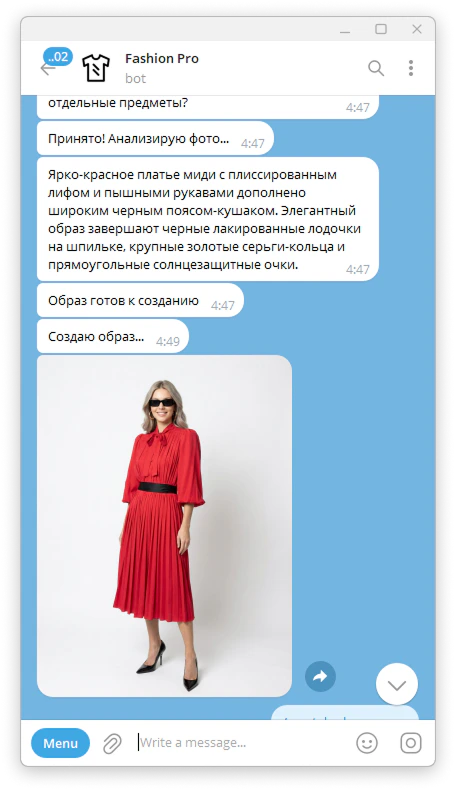
The screenshot below should show the stage where the uploaded image has already been analyzed and the user is selecting which detected items to include in the final Look.
 ## Result
At the end of either workflow, you receive a generated Look image that can be reused later in the PhotoSet module.
## Tips for better results
Use clear reference images where clothing and accessories are easy to distinguish.
If you are building a custom Look, select only the elements that truly belong in the final outfit. A more focused selection usually leads to a cleaner result.
If the uploaded image already contains a strong complete outfit, using the full outfit workflow may be the faster and more efficient option.
## Example outputs
### Full outfit result
## Result
At the end of either workflow, you receive a generated Look image that can be reused later in the PhotoSet module.
## Tips for better results
Use clear reference images where clothing and accessories are easy to distinguish.
If you are building a custom Look, select only the elements that truly belong in the final outfit. A more focused selection usually leads to a cleaner result.
If the uploaded image already contains a strong complete outfit, using the full outfit workflow may be the faster and more efficient option.
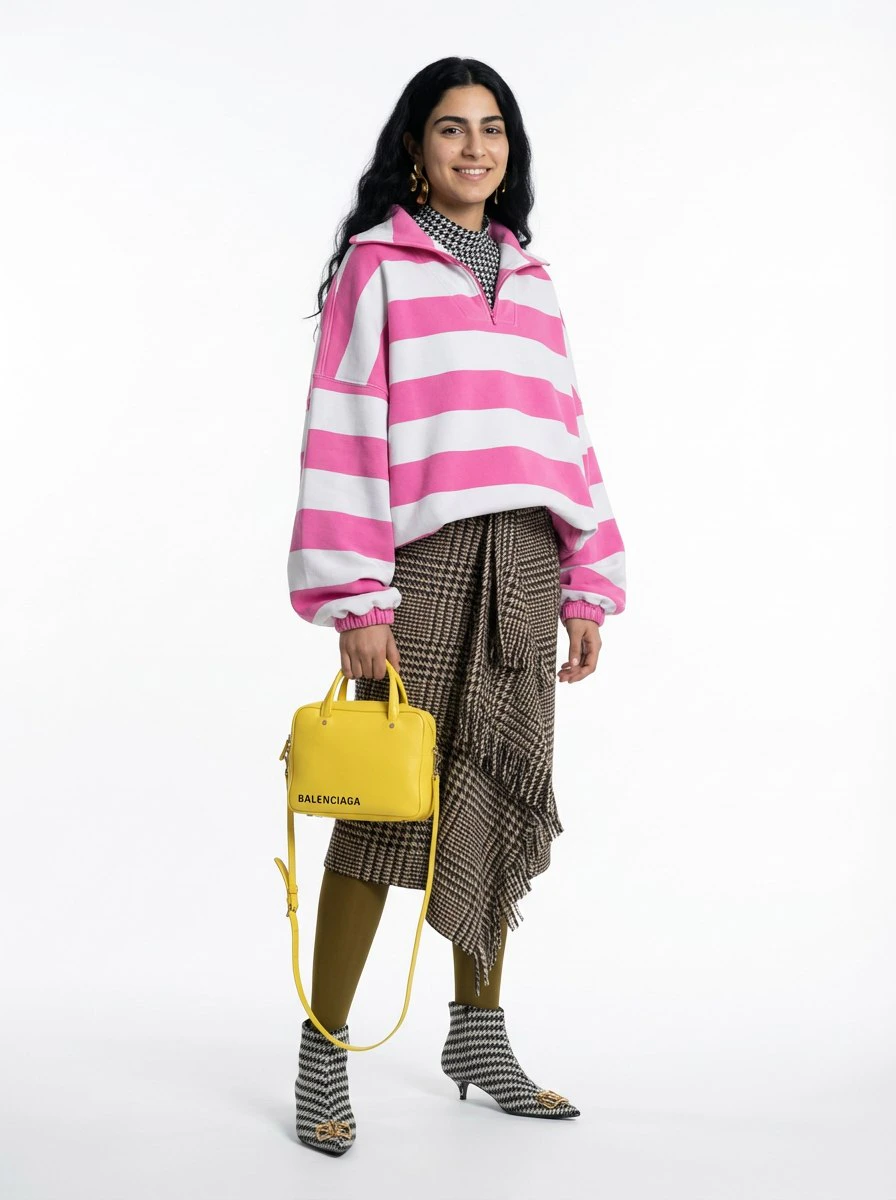
## Example outputs
### Full outfit result
 ### Custom assembled look