> ## Documentation Index
> Fetch the complete documentation index at: https://docs.trendcore.tech/llms.txt
> Use this file to discover all available pages before exploring further.
# PhotoSet
> Generate a consistent image series based on a selected Look and a creative scenario.
## What a PhotoSet is
The **PhotoSet** module is used to generate a coherent series of images based on a previously created Look.
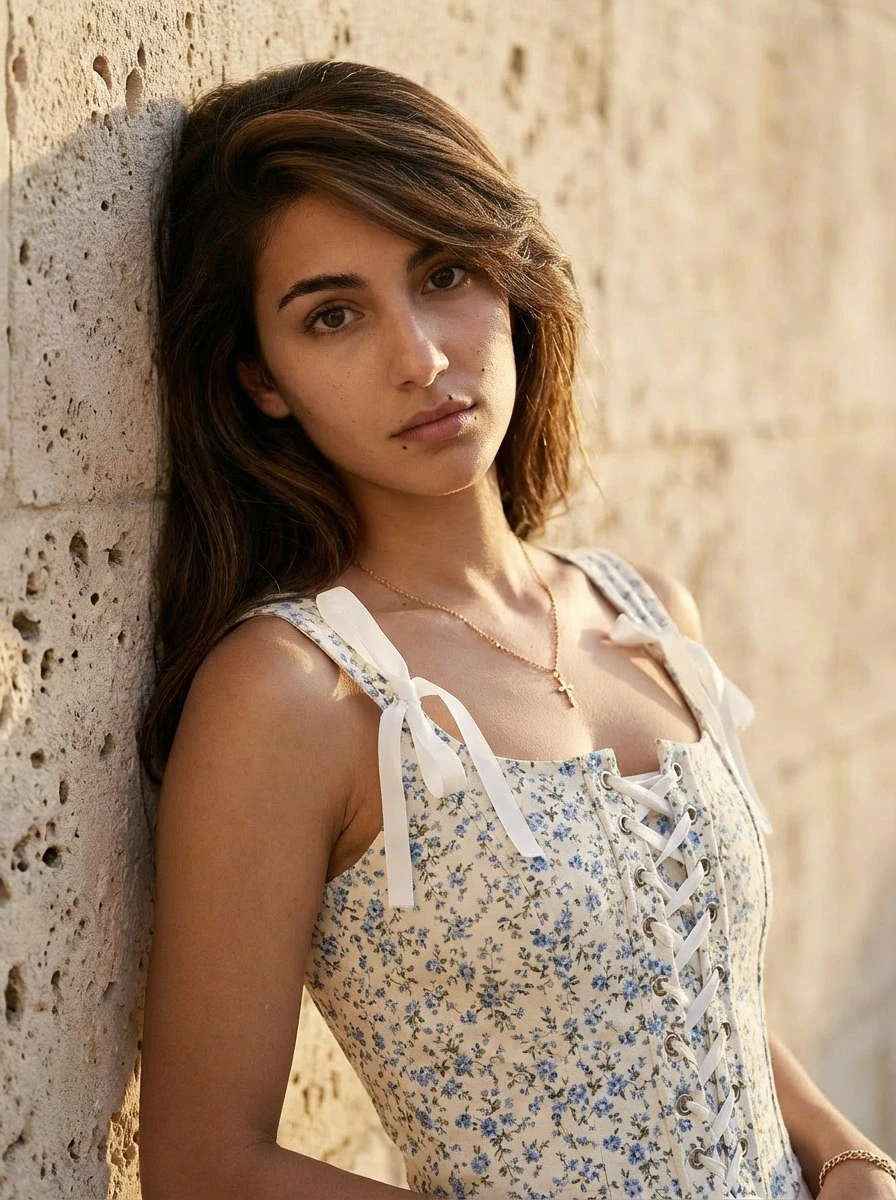
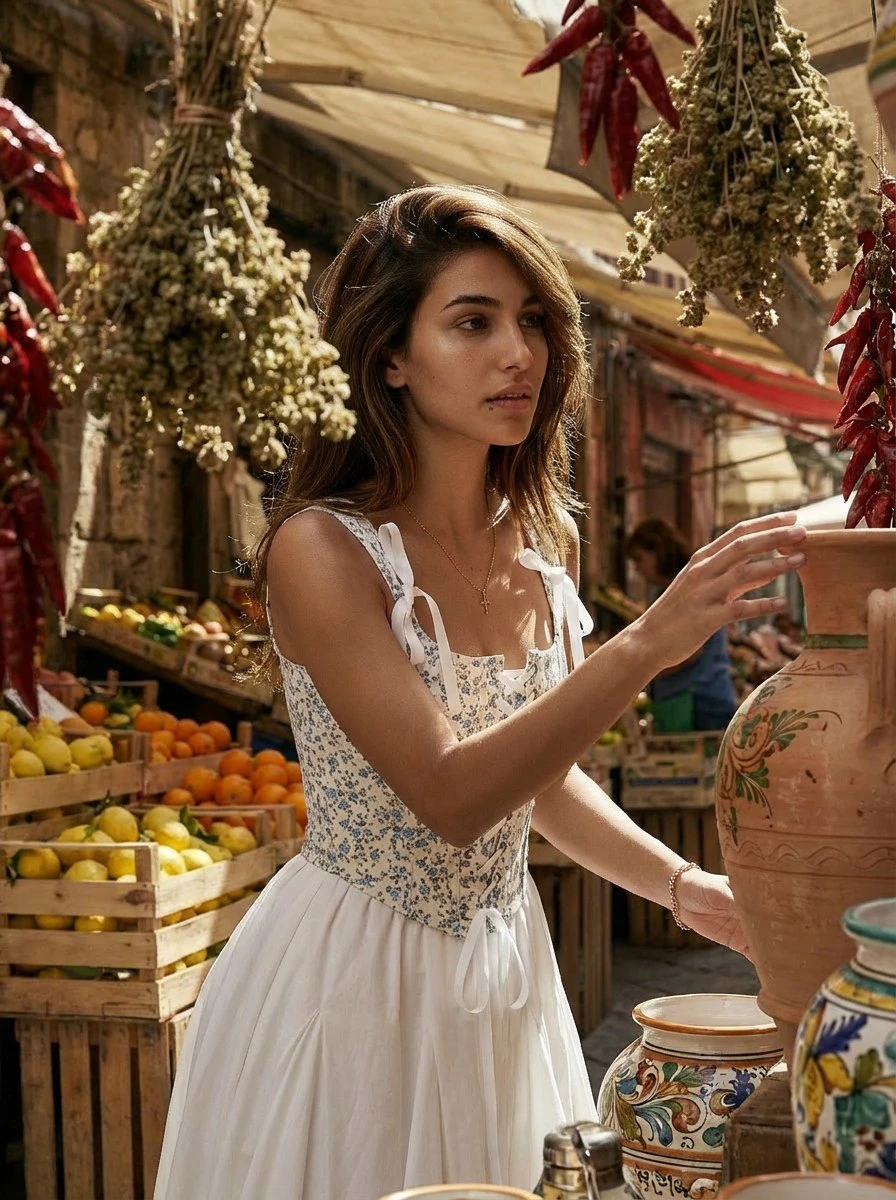
A **PhotoSet** is not a single standalone image. It is a sequence of images built around one selected outfit, one creative direction, and one visually consistent setting. The goal is to create results that feel like they belong to the same shoot.
**Look** defines the outfit. **PhotoSet** turns that outfit into a complete visual series.
The module is launched from the menu via /**photoset**
## How the module works
Launch the module from the main menu.
The module starts by asking you to upload a Look image.
The system analyzes the Look and shows a short description in the chat.
You can provide your own idea or ask the system to propose ideas.
The module presents five short creative scenarios based on your idea or its own suggestions.
You can approve them as they are or request targeted changes in free text.
After final approval, the module generates five preview images, one for each scenario.
Choose which scenario should be expanded into a full PhotoSet.
The module creates a visually consistent image series based on the selected scenario.
After one PhotoSet is completed, you can select another scenario or end the session.
## Editing scenarios
You can edit the generated scenarios using simple natural-language instructions.
For example:
* Scenario 1 — make it rainy
* Scenario 3 — change the location
* Scenario 5 — make the mood more elegant
Clear scenario-based edits usually lead to stronger and more predictable creative directions.
## In-progress example
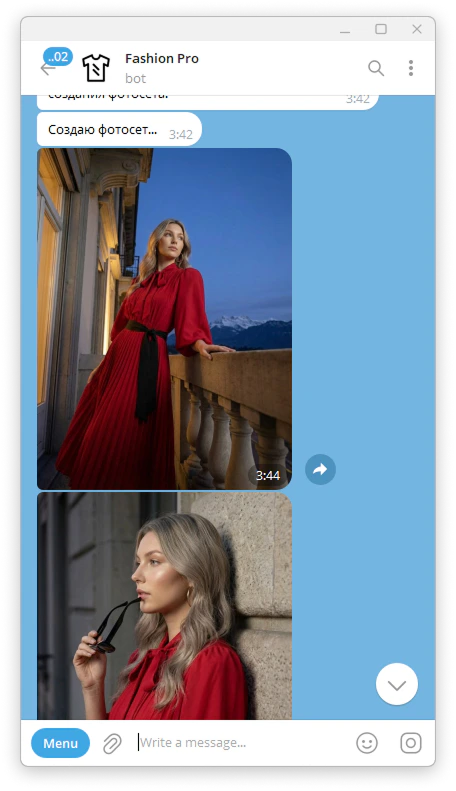
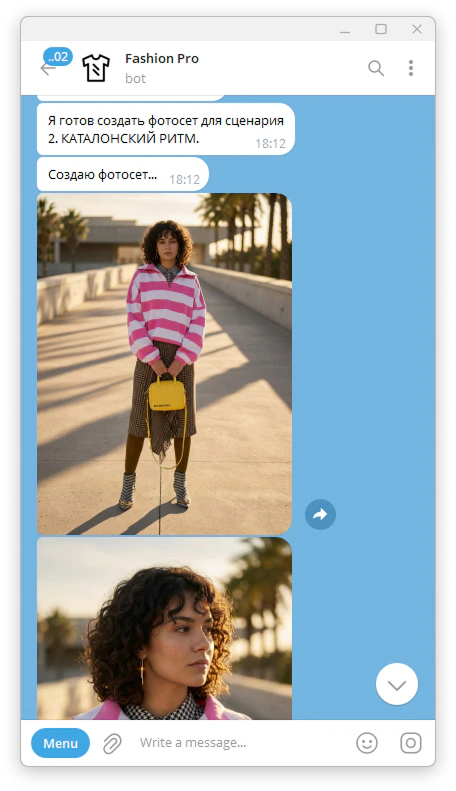
The screenshot below should show the moment when the five scenarios have already been generated and the user can approve them or request changes.
 ## Result
The final result is a visually consistent photo series based on one selected Look and one approved creative scenario.
The generated images are designed to feel connected, as if they were created in the same location, at the same time, and within the same artistic concept.
## Tips for better results
Use a clear and well-defined Look before starting the PhotoSet workflow.
If you want more control over the result, provide a short creative idea instead of relying fully on auto-generated concepts.
When editing scenarios, give direct and specific instructions.
## Example outputs
### Scenario preview result
## Result
The final result is a visually consistent photo series based on one selected Look and one approved creative scenario.
The generated images are designed to feel connected, as if they were created in the same location, at the same time, and within the same artistic concept.
## Tips for better results
Use a clear and well-defined Look before starting the PhotoSet workflow.
If you want more control over the result, provide a short creative idea instead of relying fully on auto-generated concepts.
When editing scenarios, give direct and specific instructions.
## Example outputs
### Scenario preview result
.jpg?fit=max&auto=format&n=d9LLYyjPcCL8Uc_H&q=85&s=40d47655f63739283f6be137c67585c8) ### Final consistent photo set
### Final consistent photo set